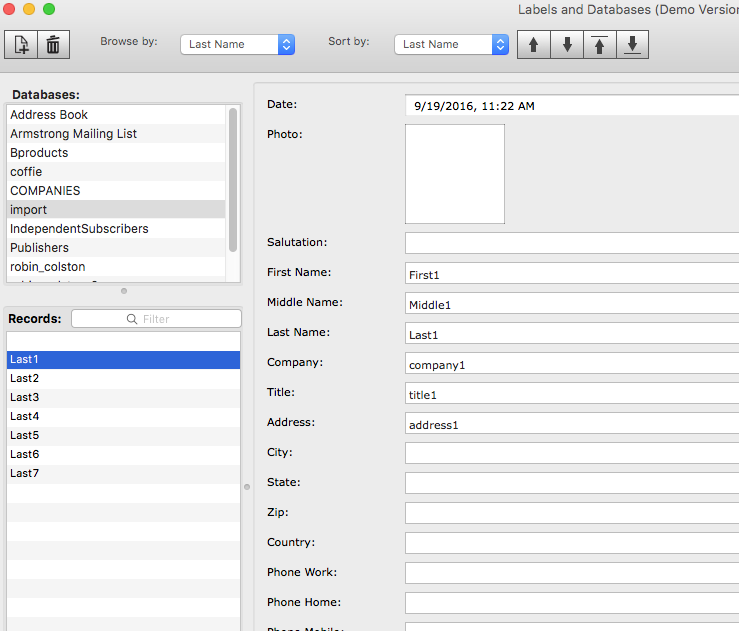
How to import database data from .CSV file with Labels and Databases
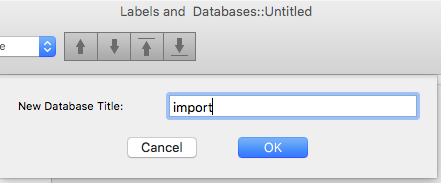
1. Create a new database, or use the existing one. I've created a new one with 'import' title.
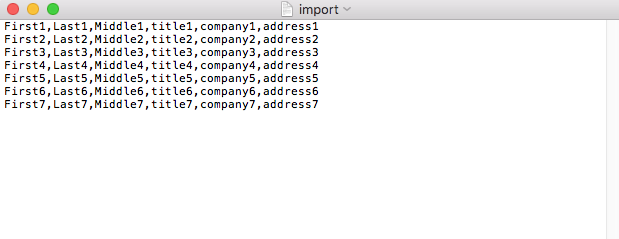
2. I added the data shown below to the import file:
3. Then I selected the File>Import menu option, and chose the file
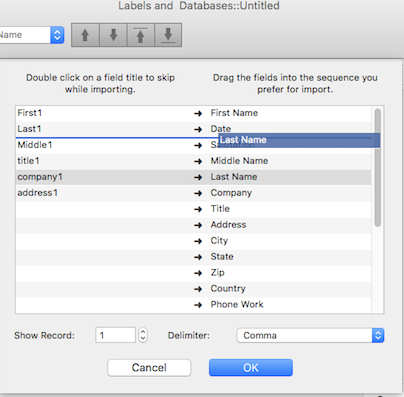
The Import Database panel has two sections. The left one displays the contents of the imported file, and the right one shows the names of the current database fields. Arrows between the two tables show the correspondence between the imported information and the fields to which it is imported.
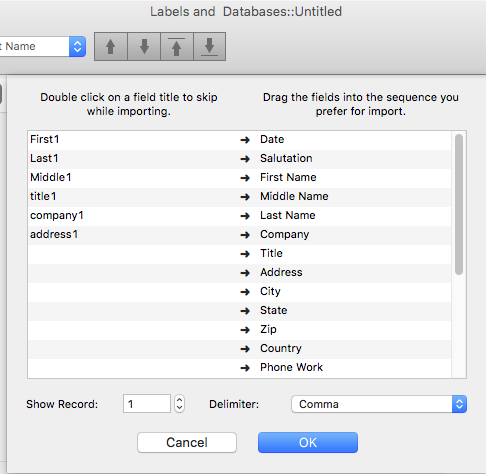
4. Next step was to choose the First name row (the row should be selected before dragging) and drag it to the first row ( the field name is bold and italicized while dragging ), then repeat with other rows.
5. Clicked OK, and got the database fields in the desired order.